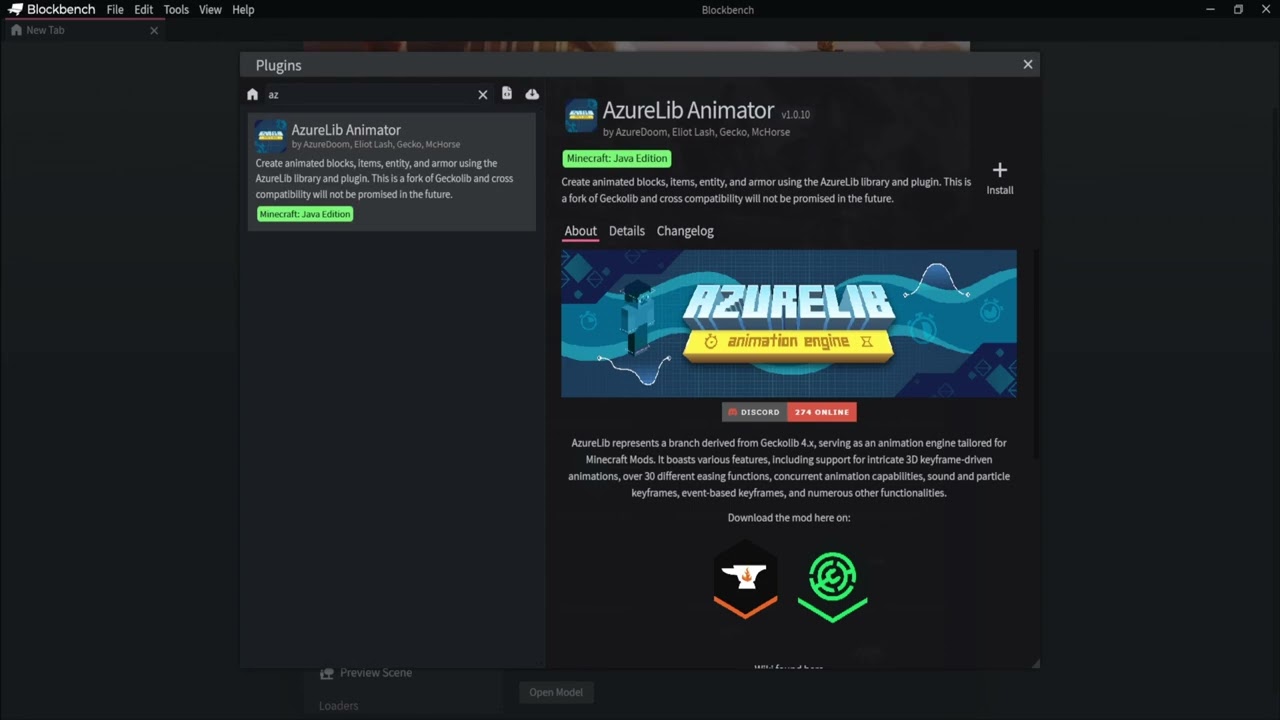
To install the AzureLIb Blockbench Plugin, follow these steps:
-
Start Blockbench and open the
Filemenu in the top left corner. -
Select
Plugins...to open the built-in plugin browser. -
Make sure you are in the
Availabletab, then search for the plugin:AzureLib Animator. -
Once you have found it, press the
Installbutton on the right-hand side. -
You are now done! You will now see the AzureLib Animated Model format in your Minecraft formats for projects.
What the Plugin Adds
- The AzureLib Animated Model format, with AzureLib's easings and animation export.
- Export options for
.geo.jsonmodels and item display settings (see How to Export Your Project). - The AzureLib Rig panel (version 2.3.0 and newer), for setting up hitboxes, sockets, IK, look-at, constraints, spring bones and blend spaces, previewing them, and generating their AzureLib code. See Setting Up Rig Features.
Updating the Plugin
To check which version you have, open File -> Plugins..., find AzureLib Animator in the Installed tab and look at the version next to its name. If it's older than 2.3.0, uninstall it there and install it again from the Available tab to get the latest version.